
Introduction
Use the two built-in buttons found on the micro:bit
Take advantage of the built-in buttons found on the front of every micro:bit board.


Video Overview
Featured Document
-
-
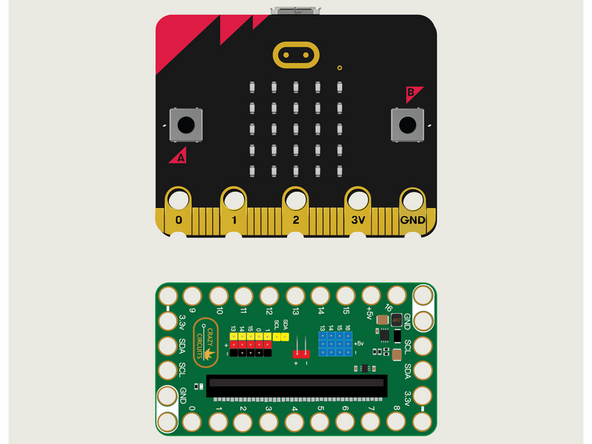
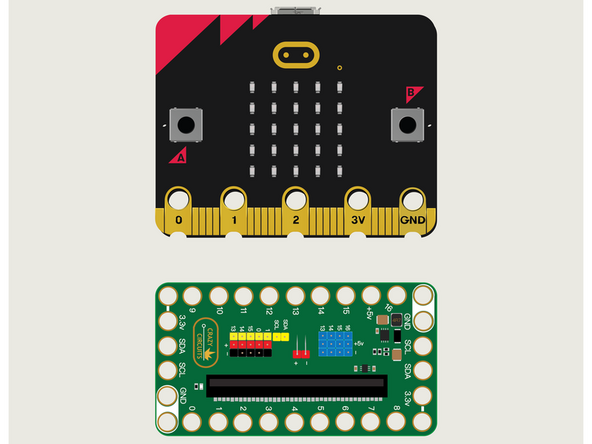
For this guide we won't need Maker Tape or any components. We're just going to put the micro:bit into the Bit Board.
-
We're only going to connect a USB cable and use the built-in A & B buttons on the front of the micro:bit
-
We'll use the LED Matrix found on the front of the micro:bit as well, to react to our button presses.
-
-
-
If you've never used a micro:bit before you'll want to check out this guide: Bit Board V2 Setup and Use
-
We're going to load the following code for our Press for Random program: https://makecode.microbit.org/_aY8Vbq6Mu...
-
When Button A is pressed we're going to loop 600 times, and each time we'll turn on a single LED in the matrix (determined randomly) and then clear the screen.
-
We'll wait just 1 millisecond between turning on the LED and turning it off. (Note that we could also use the unplot command instead of clear screen if we wanted to be more precise in turning off the LED we turned on.)
-
Finally, we'll use show number to show a number between 1 and 5.
-
You can clear the screen by pressing Button B.
-
-
-
Once the code is loaded it should start running immediately.
-
You can power the micro:bit via the USB cable you used to load the code or you can use a battery pack plugged into the Bit Board.
-
When the micro:bit gets power it will show the heart icon for one second and then the screen will clear. We use this as the "startup sequence" letting you know the program is running.
-
Press Button A and you should see the LED Matrix busy "calculating" a number... After about 600 milliseconds it will display a number between 1 and 5.
-
You can press Button A to generate a new random number, or you can press Button B to clear the screen.
-
-
-
Follow along with our recorded Live Stream!
-
You can watch the full video of us walking through this project, along with explaining and exploring the code: https://youtube.com/live/1WLUYItlSTY
-

Attached Documents
