
Introduction
Connect two LEDs to a Bit Board and control them with a micro:bit
We'll make the LEDs blink on and off together.


Video Overview
Featured Document
-
-
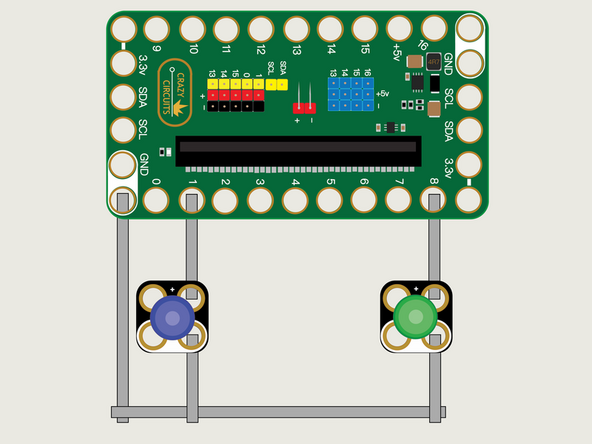
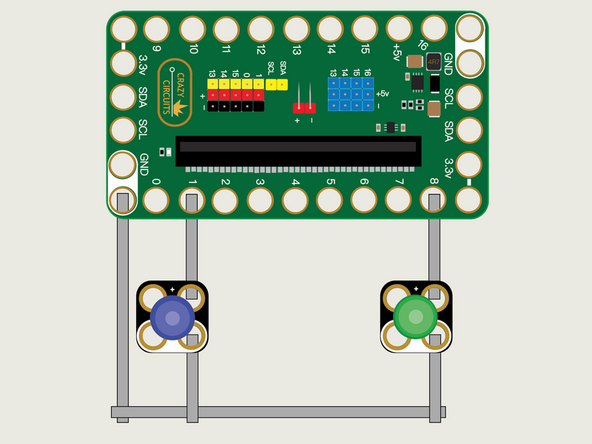
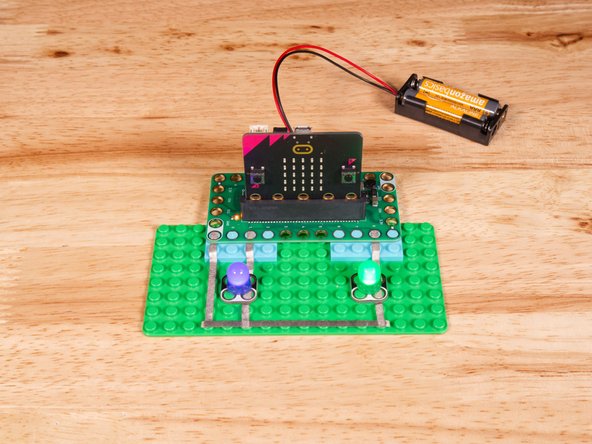
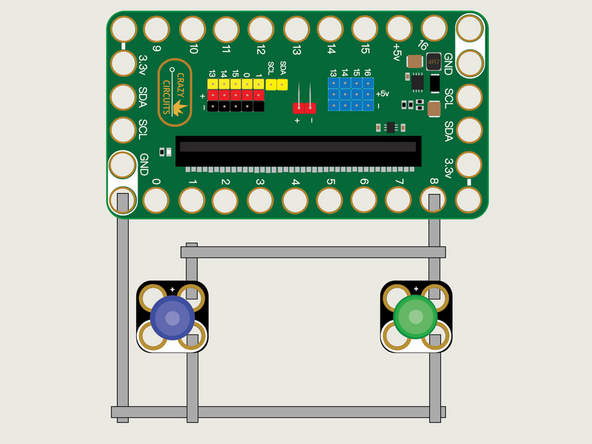
We'll use Maker Tape to connect the LEDs to the Bit Board on a LEGO baseplate.
-
Connect the Negative (-) sides of the LEDs to a Ground (GND) hole on the Bit Board.
-
Connect the Positive (+) side of the first LED to Pin 1 on the Bit Board.
-
Connect the Positive (+) side of the second LED to Pin 8 on the Bit Board.
-
You'll notice the Ground on the Bit Board (as well as the LED and other Crazy Circuits components we'll use) is color coded White.
-
-
-
If you've never used a micro:bit before you'll want to check out this guide: Bit Board V2 Setup and Use
-
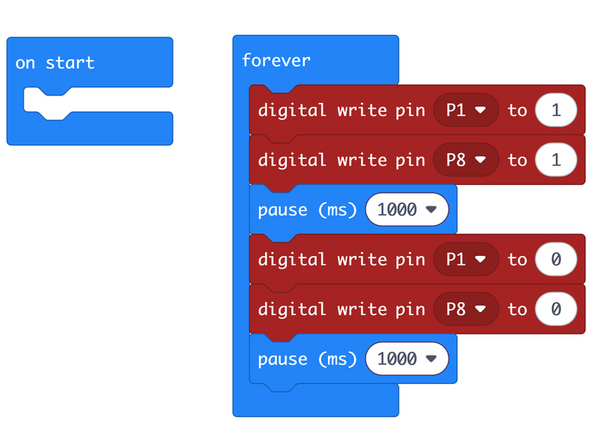
We're going to load the following code for our LED Blink Together program: https://makecode.microbit.org/_hU7TEbA4Y...
-
This code will make both LEDs turn on, wait one second, turn them both off, wait another second, and then repeat.
-
The digital write command can be set to 1 or 0 to set a pin high or low which will turn on or off an LED in this example.
-
We can choose which pin will be affected using the drop down control in the digital write command. Here we have chosen Pin 1 and Pin 8.
-
-
-
Once the code is loaded it should start running immediately.
-
You can power the micro:bit via the USB cable you used to load the code or you can use a battery pack plugged into the Bit Board.
-
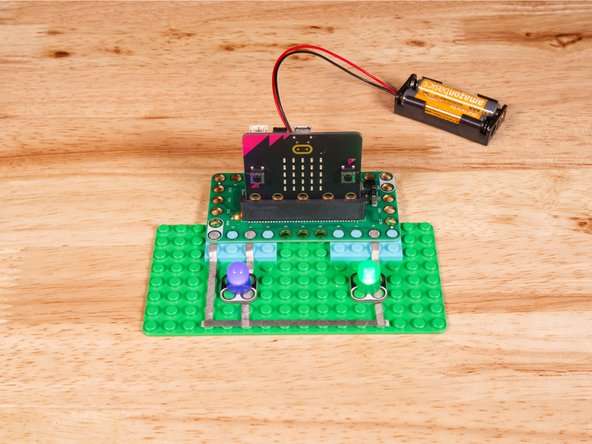
The LEDs should turn on together, then after one second turn off together, then after another second turn on again, and repeat.
-
-
-
You may be wondering if we could just connect two LEDs to one single pin...
-
The short answer is "Yes" but the long answer is "Maybe", so we'll explain.
-
In this specific case, connecting two Crazy Circuits LEDs to one single pin on the Bit Board... It will work.
-
But! there are a few caveats. First, our Crazy Circuits LEDs have built-in resistors which limit the amount of current they draw. So while connecting two LEDs is okay in this case, we shouldn't make it a habit.
-
Other LEDs may not have resistors built in. (Most do not!) We do it for ours to make getting started learning electronics a little easier.
-
As we delve into other components it will be rare that we'll be able to connect multiple parts to a single pin. So while worth mentioning here, we won't make a habit of it.
-
Finally, this connection method limits us to always controlling the LEDs together, and who wants to be limited?
-
In the next guide we'll cover how to control two LEDs separately!
-
-
-
Follow along with our recorded Live Stream!
-
You can watch the full video of us walking through this project, along with explaining and exploring the code: https://youtube.com/live/QZck9h1C3A8
-
Attached Documents
