
Introduction
Connect two LEDs to a Bit Board and control them with a micro:bit
We'll make the LEDs fade up and down using a repeat function.


Video Overview
Featured Document
-
-
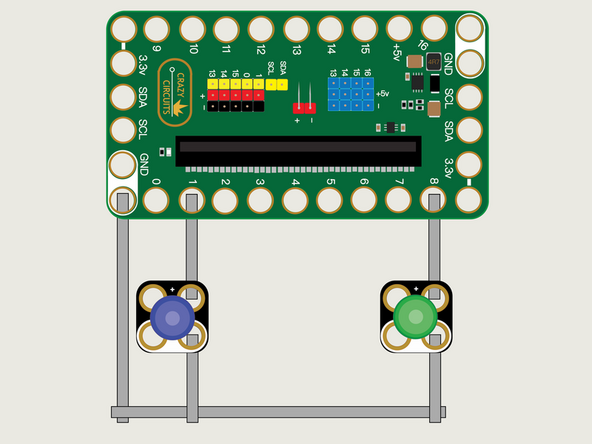
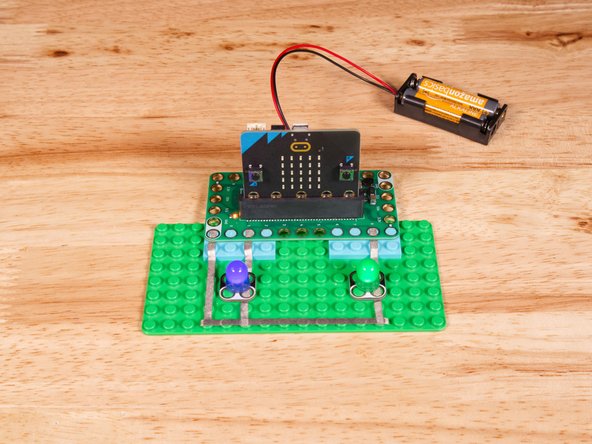
We'll use Maker Tape to connect the LEDs to the Bit Board on a LEGO baseplate.
-
Connect the Negative (-) sides of the LEDs to a Ground (GND) hole on the Bit Board.
-
Connect the Positive (+) side of the first LED to Pin 1 on the Bit Board.
-
Connect the Positive (+) side of the second LED to Pin 8 on the Bit Board.
-
You'll notice the Ground on the Bit Board (as well as the LED and other Crazy Circuits components we'll use) is color coded White.
-
-
-
If you've never used a micro:bit before you'll want to check out this guide: Bit Board V2 Setup and Use
-
We're going to load the following code for our LED Fade Up and Down program: https://makecode.microbit.org/_5VoC5q9Y1...
-
There's a lot going on in this code, so we'll explain a few things.
-
First, we are using variables, in this case brightness1 and brightness2, to hold the value we will use to control the brightness of the LED.
-
Variables are extremely important when writing code, as they allow you an easy method of changing a value based on something else.
-
We're also using a repeat block (or "loop") to iterate a certain number of times. The repeat block can be quite handy if you want to do something a certain amount of times.
-
We are also using the change function to increase or decrease the variable by an amount. (2 or -2 for the LED on Pin 1 and 4 or -4 for the LED on Pin 8.)
-
This code will work, but it's not great! As you change some numbers it will affect other numbers in weird ways. The number values we've typed in could be called "hardcoded" values as they do not use variables which allow for dynamic changes.
-
-
-
Once the code is loaded it should start running immediately.
-
You can power the micro:bit via the USB cable you used to load the code or you can use a battery pack plugged into the Bit Board.
-
The LEDs will fade up and down, at different rates, and in different steps.
-
As we mention while this code will work, it's not the greatest... so in the next guide we'll improve on it!
-
-
-
Follow along with our recorded Live Stream!
-
You can watch the full video of us walking through this project, along with explaining and exploring the code: https://youtube.com/live/QZck9h1C3A8
-

Attached Documents
