
Introduction
Connect a 270˚ Servo to a Bit Board and control it with a Pushbutton and code.
We'll explore using a momentary push button (and some code) to control the movement of a servo motor.


Video Overview
Featured Document
-
-
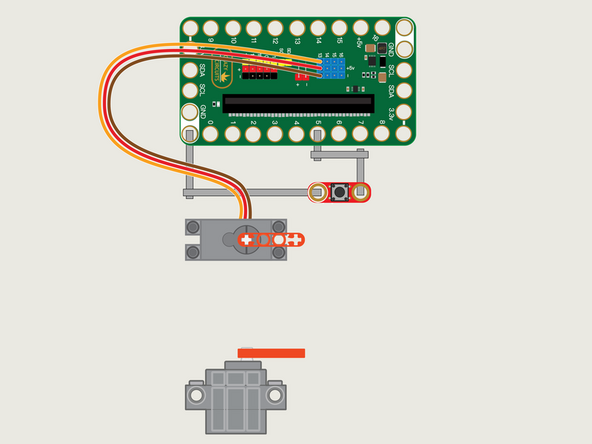
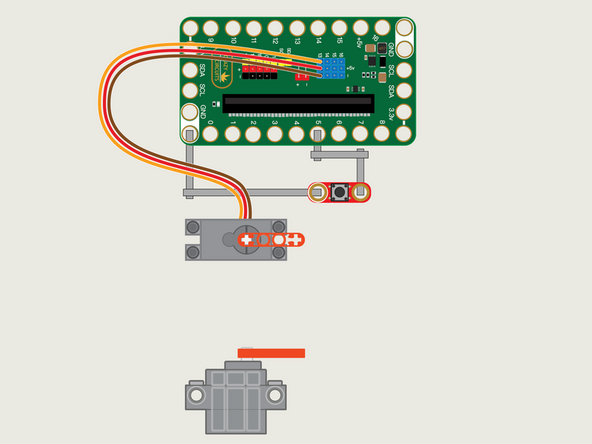
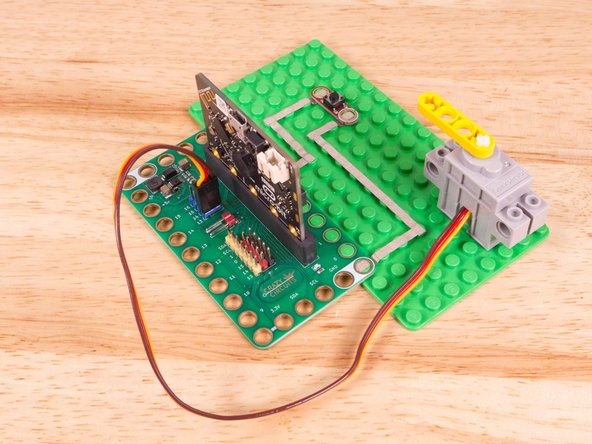
The 270 Degree Servo Motor has a 3-wire connector on the end that can plug directly into the pins on the back of the Bit Board.
-
Make sure the Orange Wire is closest to the number 13 for the Pin 13 column.
-
Then the Brown Wire should be closest to the micro:bit (in the - row) and the Red Wire will be in the middle (the +5v row).
-
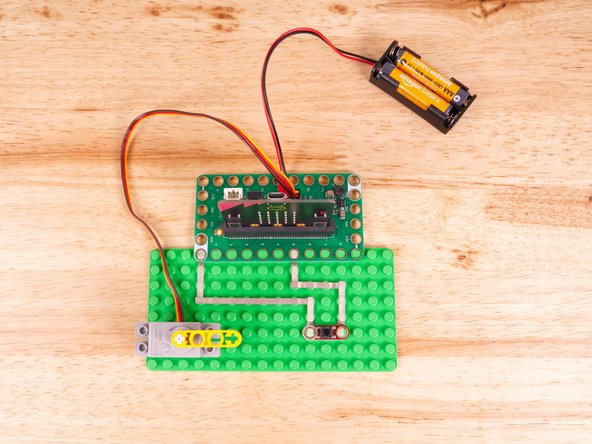
Connect the Button with Maker Tape, with one side to Pin 5 and the other to GND.
-
-
-
If you've never used a micro:bit before you'll want to check out this guide: Bit Board V2 Setup and Use
-
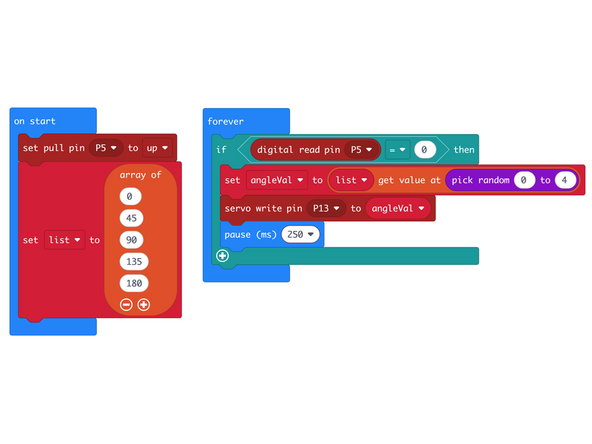
We're going to load the following code for our Servo Selector List program: https://makecode.microbit.org/_VCrCAx3a0...
-
This time instead of just selecting a random number we'll pull a number from a predefined list. This allows us to choose between a set of specified numbers.
-
We can use our pick random to select one of the 5 values by choosing a random number between 0 and 4.
-
Remember that when we start at 0 we include it as a value, so 0 to 4 is five options.
-
We use the term "list" for our collection of numbers but the term array can also be used, and in most programming languages the two terms are interchangeable.
-
-
-
Once the code is loaded it should start running immediately, but the servo won't move until you press the button.
-
You can power the micro:bit via the USB cable you used to load the code, but now that we are using servos we recommend using a battery pack plugged into the Bit Board.
-
The Blue Pins on the Bit Board provide extra power (5 volts instead of 3 volts) by boosting the voltage coming from the battery pack. This helps improve servo performance, especially with multiple servos.
-
When the button is pressed the servo will move to a position. It may not move if the same (random) position is selected more than once in a row.
-
-
-
Follow along with our recorded Live Stream!
-
You can watch the full video of us walking through this project, along with explaining and exploring the code: https://www.youtube.com/live/Og8T6cw5Ai0
-
Attached Documents
