
Introduction
Connect a 360˚ Servo to a Bit Board and control it with code.
We'll explore code to control the movement of a continuous rotation (360 degree) servo motor.

Video Overview
Featured Document
-
-
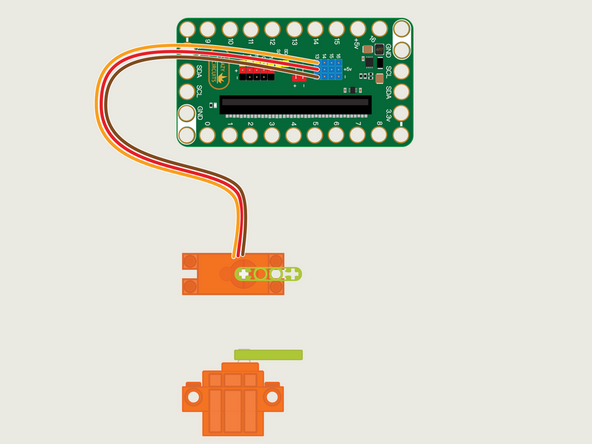
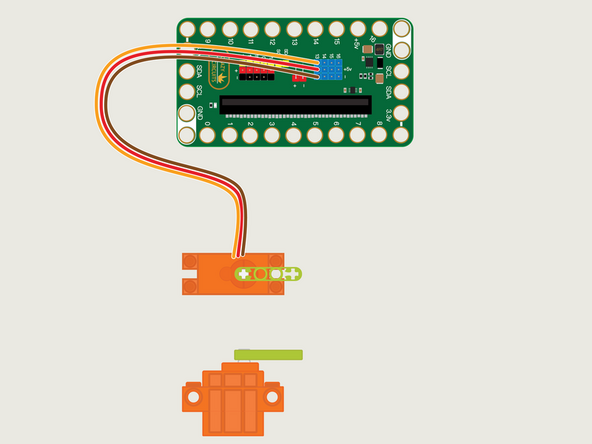
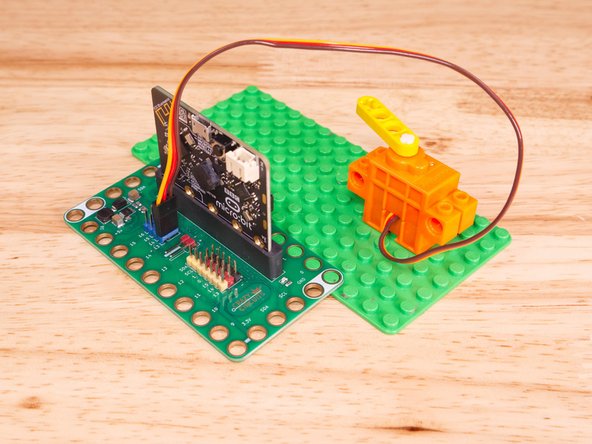
The 360 Degree Servo Motor has a 3-wire connector on the end that can plug directly into the pins on the back of the Bit Board.
-
Make sure the Orange Wire is closest to the number 13 for the Pin 13 column.
-
Then the Brown Wire should be closest to the micro:bit (in the - row) and the Red Wire will be in the middle (the +5v row).
-
A 360 Degree Servo is also called a "Continuous Rotation Servo" because it can spin around continuously without the hard stops that a 270 Degree Servo has.
-
-
-
If you've never used a micro:bit before you'll want to check out this guide: Bit Board V2 Setup and Use
-
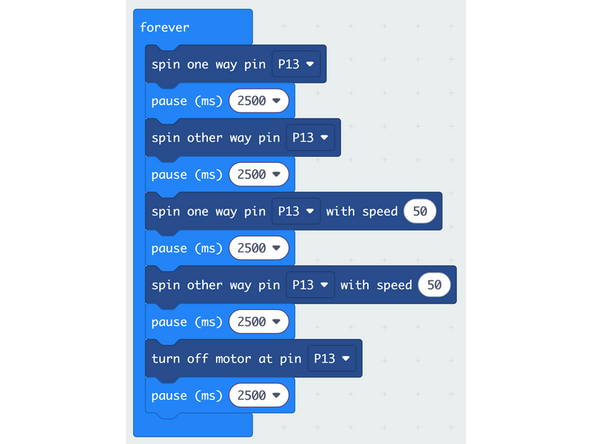
We're going to load the following code for our 360 Servo Spin program: https://makecode.microbit.org/_Xuu8baK85...
-
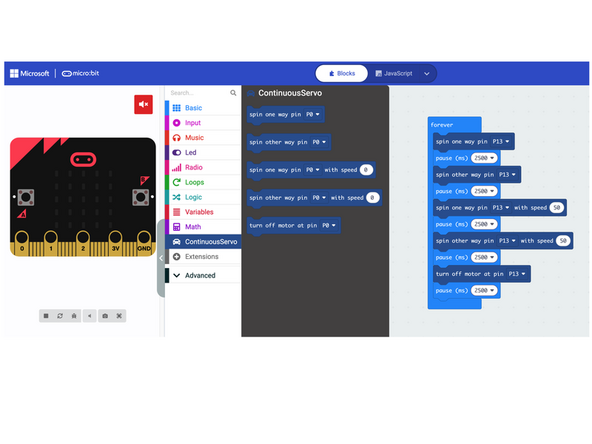
We're going to use the ContinuousServo extension to add functionality to our code.
-
If you're using the link above to the code it will load automatically, but if you start a new program in MakeCode you'll need to load the extension into your program before using it.
-
The ContinuousServo extension makes it really easy to control a 360 servo!
-
We can set the direction and speed of a 360 servo connected to a specific pin and we can also stop a servo from spinning.
-
-
-
Once the code is loaded it should start running immediately.
-
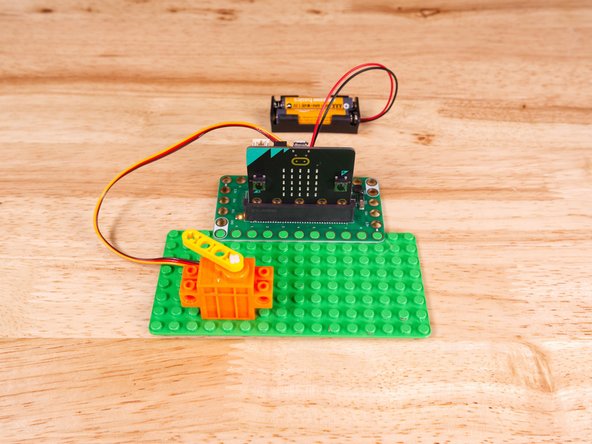
You can power the micro:bit via the USB cable you used to load the code, but now that we are using servos we recommend using a battery pack plugged into the Bit Board.
-
The Blue Pins on the Bit Board provide extra power (5 volts instead of 3 volts) by boosting the voltage coming from the battery pack. This helps improve servo performance, especially with multiple servos.
-
The Servo will spin in one direction at full speed, then the other direction at full speed, then the first direction at half speed, then the second direction half speed, and then stop.
-
The pause after each command allows it to run for that amount of time. So in this example each action will execute for 2.5 seconds.
-
-
-
Follow along with our recorded Live Stream!
-
You can watch the full video of us walking through this project, along with explaining and exploring the code: https://youtube.com/live/6SM5-RuBkuY
-
Attached Documents
