
Introduction
Connect a 7 Segment Display to a Bit Board and control it with code.
We'll explore code to control a 7 Segment Digital Display that can show numbers up to 9999.

Video Overview
Featured Document
-
-
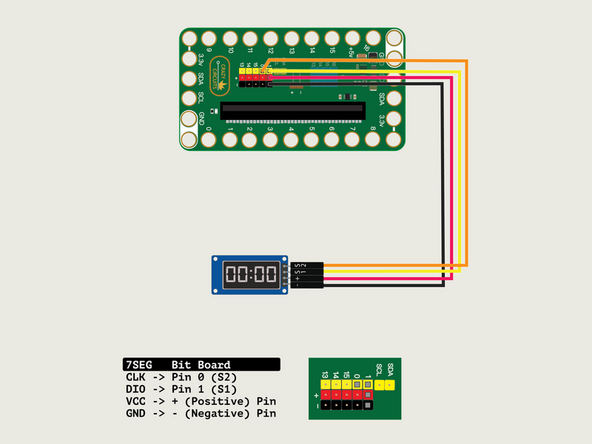
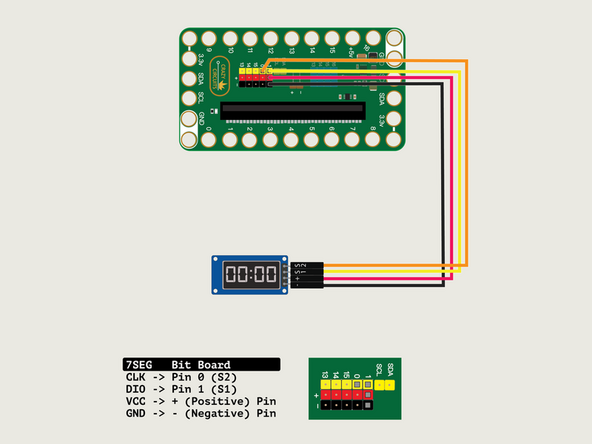
We'll connect the 7 Segment Display with a Crazy Circuits Ribbon Cable using all four wires.
-
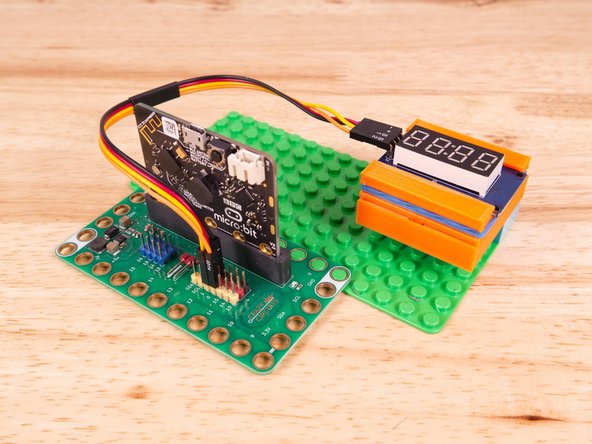
Start by plugging the connector with the three wires in it (Black, Red, Yellow) into the Pin 1 row of the Bit Board. (Make sure the Black wire is in - and the Yellow wire labeled S1 is closest to the number 1 on the Bit Board.)
-
We can then plug the Orange wire labeled S2 into Pin 0 on the Bit Board.
-
Now we'll connect the other end of the Ribbon Cable to the 7 Segment Display.
-
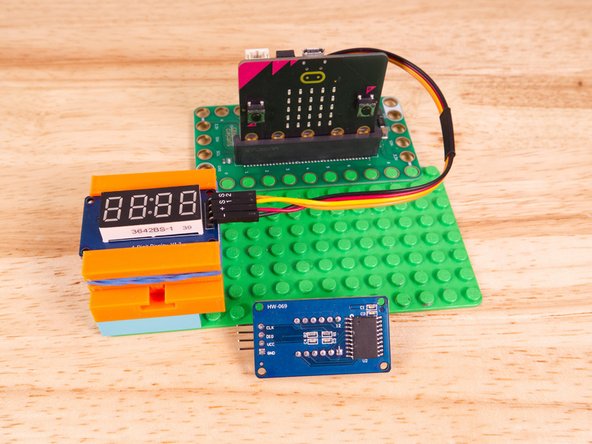
The pin labels are on the back of the 7 Segment Display PCB. From top to bottom it's CLK, DIO, VCC, GND.
-
CLK stands for Clock and DIO stands for Data Input/Output. VCC is the Positive (+) and GND is the Ground (-) or Negative.
-
S2 (Orange) goes to CLK, S1 (Yellow) goes to DIO, and then + (Positive) goes to VCC and - (Ground or Negative) goes to GND.
-
Make sure every wire is connected in the correct place, or our display will not work!
-
-
-
We used a 3D printed holder we designed to hold the 7 Segment Display in place on the LEGO baseplate.
-
You can find the guide for the holder here: 7 Segment Display Holder
-
Alternately you can use some LEGO bricks and a rubber band or tape to hold the display in place.
-
-
-
If you've never used a micro:bit before you'll want to check out this guide: Bit Board V2 Setup and Use
-
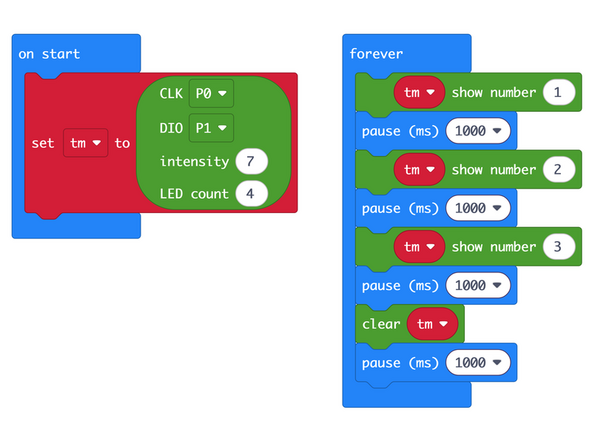
We're going to load the following code for our 7 Segment Count program: https://makecode.microbit.org/_fX0KVyK07...
-
In the on start block we'll set up our display using the pins we've connected. CLK to Pin 0 and DIO to Pin 1.
-
We'll also set the intensity (or "brightness") to 7, which is the brightest setting, and specify how many digits our display has, which is 4.
-
In our forever loop we're just going to use the show number statement to show some numbers. Simple!
-
We'll pause between each number so you have time to see it. (Without the pauses it would just run super-fast and you'd never get a chance to see a number!)
-
Near the end of our code we'll use the clear statement to clear out any numbers showing on the display. It is possible to show weird and conflicting data if you do not use clear.
-
We've already loaded the TM1637 Extension for this code. If you start a new blank program you will need to load it.
-
-
-
Once the code is loaded it should start running immediately.
-
You can power the micro:bit via the USB cable you used to load the code or you can use a battery pack plugged into the Bit Board.
-
The display will count up from 1 to 3 and then the display will go blank, and repeat the process.
-
-
-
Follow along with our recorded Live Stream!
-
You can watch the full video of us walking through this project, along with explaining and exploring the code: https://youtube.com/live/DI-rLHZK86g
-

Attached Documents
