
Introduction
Connect a pushbutton to a Bit Board and control an LED with it.
We'll explore how we can use a pushbutton as an input for the micro:bit


Video Overview
Featured Document
-
-
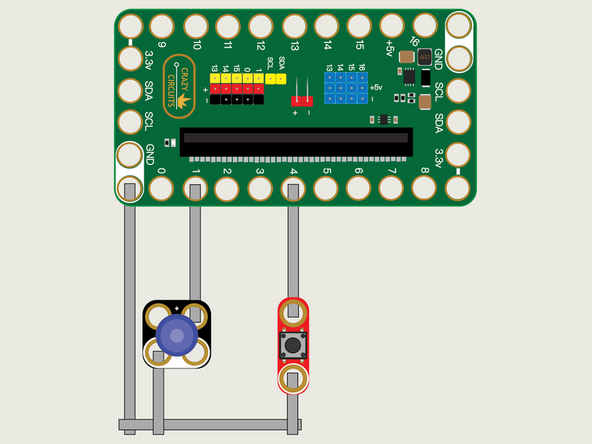
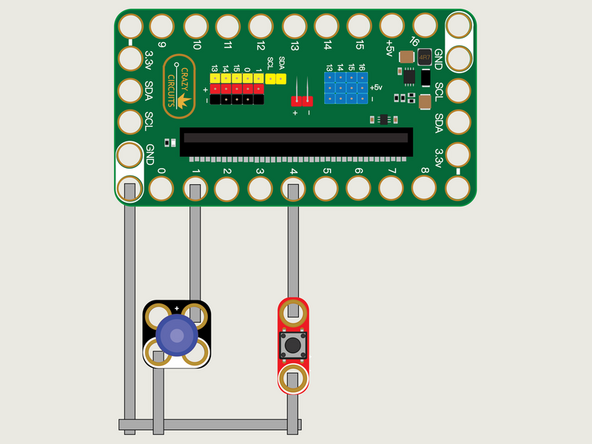
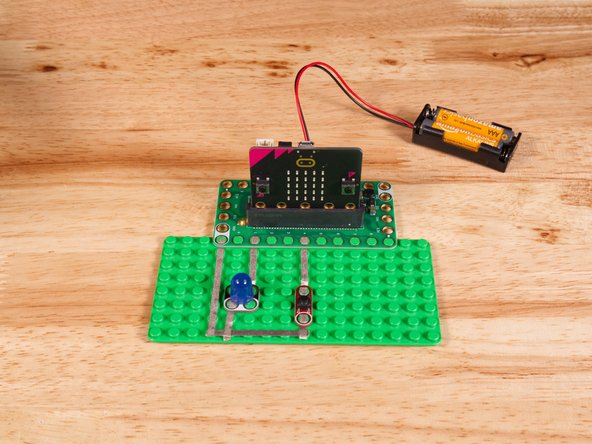
We'll use Maker Tape to connect the Button and LED to the Bit Board on a LEGO baseplate.
-
We've already connected an LED in Chapter 1 so our new addition this time is the Button.
-
We'll connect our LED to Pin 1 and our Button to Pin 4.
-
And of course we'll connect the Ground (GND) sides of each component to Ground on the Bit Board.
-
You'll notice the Ground on the Bit Board (as well as the LED and other Crazy Circuits components we'll use) is color coded White.
-
While the LED has Polarity our Button does not. If you connect it the other way around it will still work fine. Not all components have Polarity.
-
-
-
If you've never used a micro:bit before you'll want to check out this guide: Bit Board V2 Setup and Use
-
We're going to load the following code for our Button Toggle program: https://makecode.microbit.org/_0LjKjs5tc...
-
This code will turn on the LED when the button is pressed the first time, and then turn off the LED when the button is pressed a second time.
-
In the top forever block we're using an if else block to do a "bitwise operation" or "bit flipping". If buttonValue is 1 we set it to 0 and if it's 0 we set it to 1.
-
This Button Toggle code will (mostly) work but is not optimal! We are using a short (500 millisecond) after the button is pressed to help prevent "double presses" but it is not perfect, and you can probably press the button twice in a half second and see how this code fails. (Also, try holding the button down.)
-
Technically what were trying to do is "debounce" the button. If you've ever been shocked by static electricity when getting very close to something metal you've experience what we are trying to prevent...
-
When a charged piece of metal inside a button gets close to another piece of metal in a button a small spark can jump the gap and create two contacts–one before the button is fully pressed and one when it is fully pressed.
-
In our next guide we'll explore another (better!) way to do this and in later Chapters we'll look at event handers for more advanced ways to deal with buttons.
-
-
-
Once the code is loaded it should start running immediately.
-
You can power the micro:bit via the USB cable you used to load the code or you can use a battery pack plugged into the Bit Board.
-
The LED should turn on when the button is first pressed, turn off when the button is pressed again, and so on, toggling on and off with each press.
-
-
-
Follow along with our recorded Live Stream!
-
You can watch the full video of us walking through this project, along with explaining and exploring the code: https://www.youtube.com/live/sWfe8znn6C0
-

Attached Documents
