
Introduction
Connect a Thumbstick to a Bit Board and view the output using a 7 Segment Display.

Video Overview
Featured Document
-
-
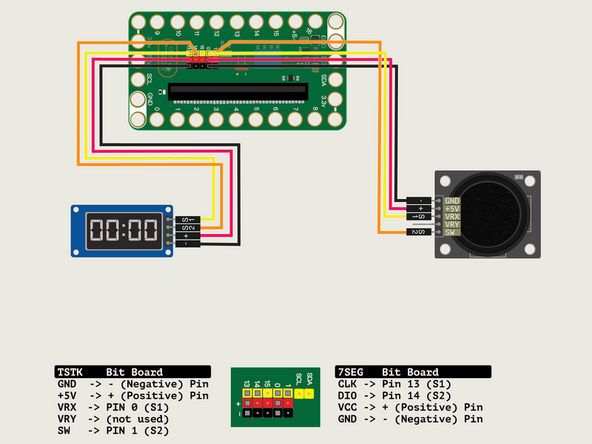
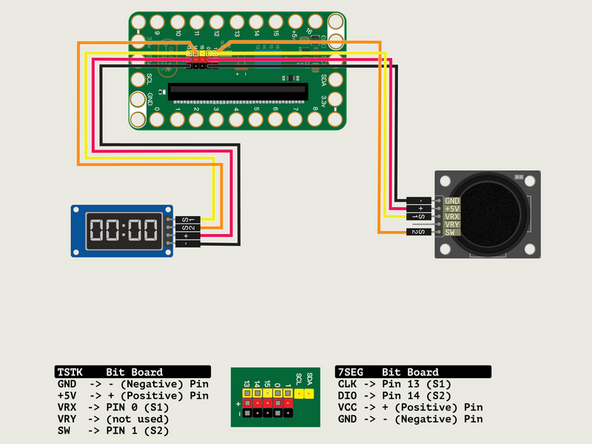
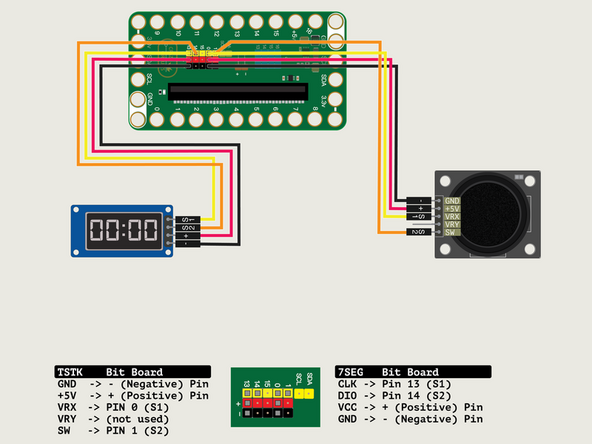
We'll connect the Thumbstick with a Crazy Circuits Ribbon Cable using all four wires.
-
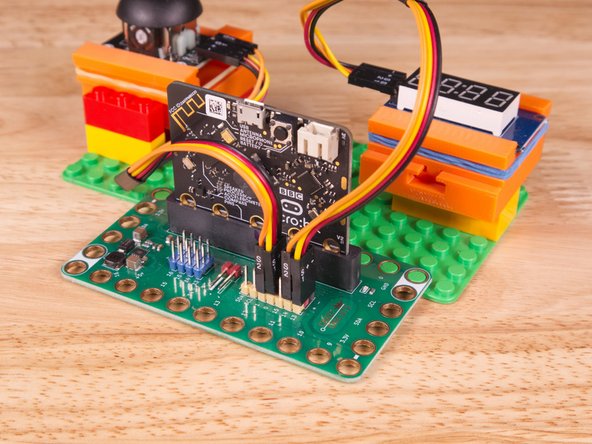
Plug the three-wire connector of the Crazy Circuits Ribbon Cable into the row with Pin 0 on the Bit Board. The wire colors should match the pin header colors, with S1 (yellow) going to the yellow pin.
-
Next, plug S2 (orange) into Pin 1. (S2 is separated from the three-wire connector to allow you to plug it into another row.)
-
To the Thumbstick plug - (black) into GND, + (red) into +5V; S1 (yellow) into VRx; S2 (orange) into SW.
-
We won't plug anything into VRy pin for this example.
-
-
-
We'll connect the 7 Segment Display with a Crazy Circuits Ribbon Cable using all four wires.
-
Start by plugging the connector with the three wires in it (Black, Red, Yellow) into the Pin 13 row of the Bit Board. (Make sure the Black wire is in - and the Yellow wire labeled S1 is closest to the number 13 on the Bit Board.)
-
We can then plug the Orange wire labeled S2 into Pin 14 on the Bit Board.
-
Now we'll connect the other end of the Ribbon Cable to the 7 Segment Display.
-
The pin labels are on the back of the 7 Segment Display PCB. From top to bottom it's CLK, DIO, VCC, GND.
-
CLK stands for Clock and DIO stands for Data Input/Output. VCC is the Positive (+) and GND is the Ground (-) or Negative.
-
S1 (Yellow) goes to CLK, S2 (Orange) goes to DIO, and then + (Positive) goes to VCC and - (Ground or Negative) goes to GND.
-
Make sure every wire is connected in the correct place, or our display will not work!
-
-
-
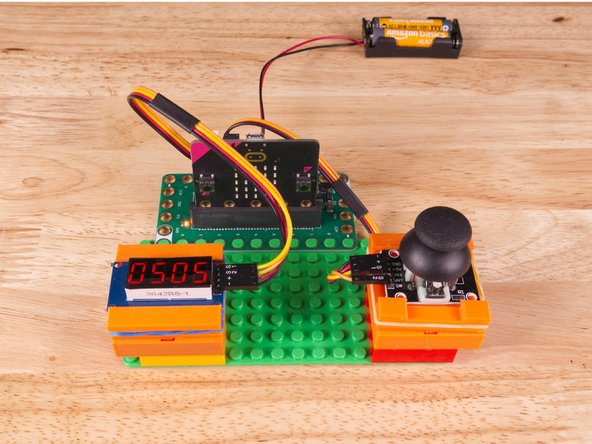
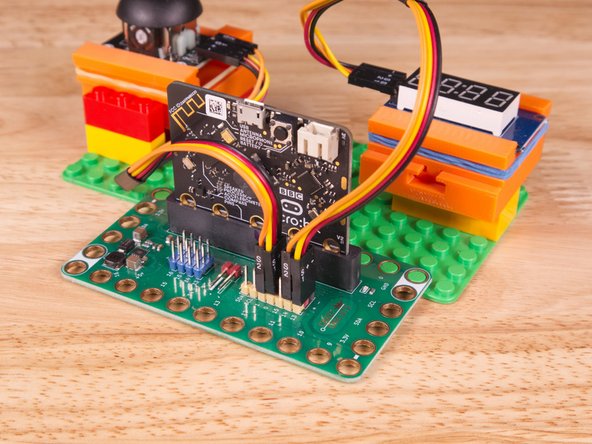
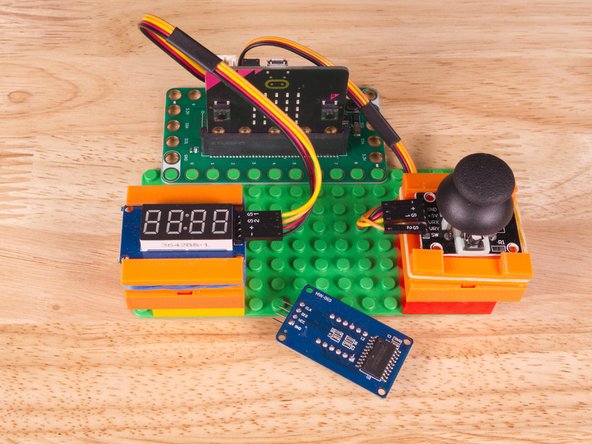
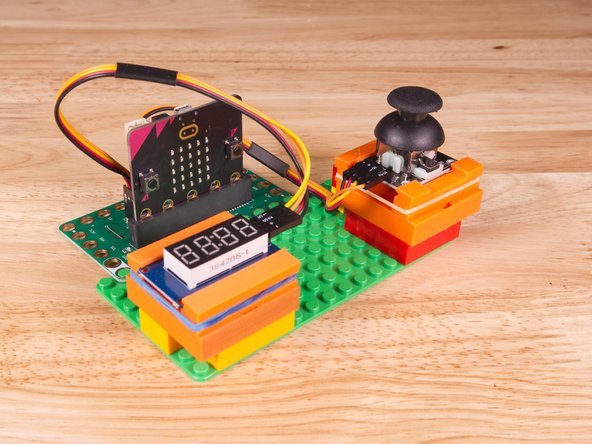
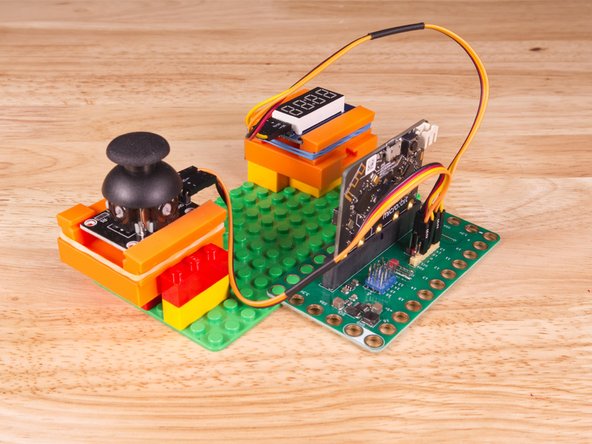
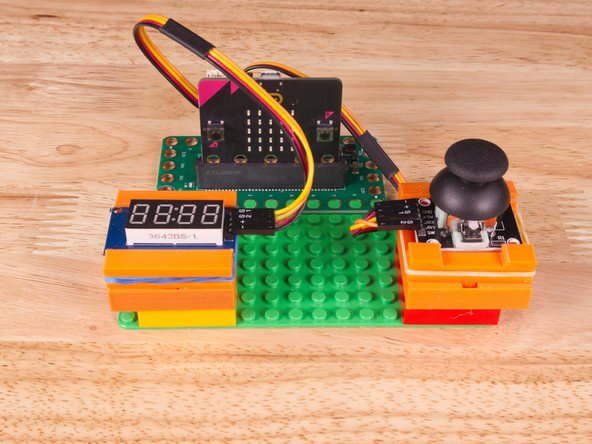
We used some 3D printed parts we designed to hold the Thumbstick and 7 Segment Display in place on a LEGO baseplate.
-
We attached two 2x4 LEGO Bricks to the bottom of the 3D printed holders to allow it to snap onto the LEGO Baseplate a bit easier.
-
Alternately you can try to use some LEGO bricks and some rubber bands/tape to hold the sensors in place.
-
You can always 3D print your own Thumbstick Sensor Holder and 7 Segment Display Holder if you need them.
-
-
-
If you've never used a micro:bit before you'll want to check out this guide: Bit Board V2 Setup and Use
-
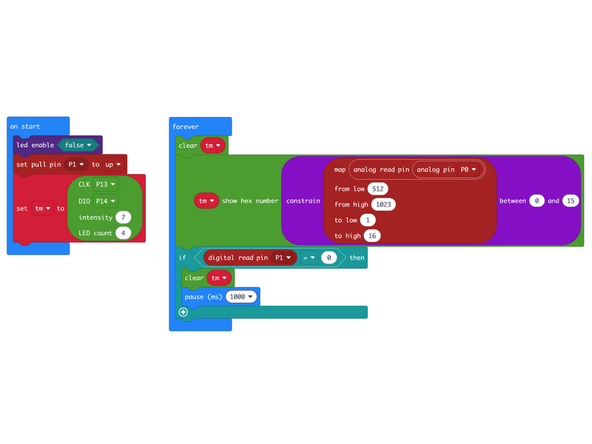
We're going to load the following code for our Thumbstick 7 Segment Hex program: https://makecode.microbit.org/_44yarJJzA...
-
In the on start block we'll disable the LED matrix and set Pin 1 to pull up, as we'll attach this to the button on the Thumbstick.
-
We'll also set up our 7 Segment Display by setting CLK to use Pin 13 and DIO to use Pin 14. (We assign the display to a variable named tm.)
-
In the forever loop we'll first clear the display, and then we'll read Pin 0, map the value from the input (0 to 1023) to an output ranging from 0 to F.
-
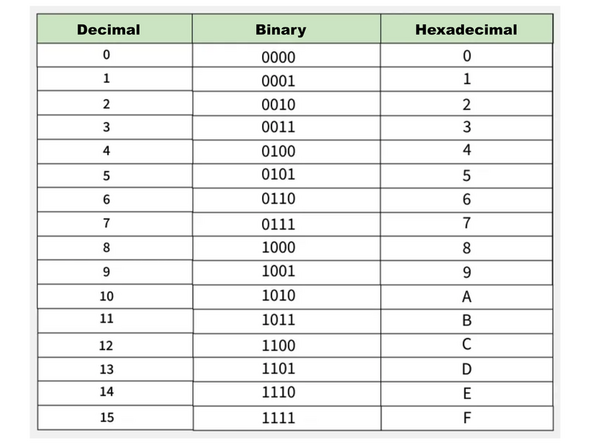
Wait... 0 to F!? Yes. Notice we are now using show hex number, and 0 through 15 corresponds to 0 through F in hex.
-
See the graphic showing how Decimal, Binary, and Hexadecimal compare.
-
Learn more about Binary, Decimal and Hexadecimal Numbers!
-
-
-
Once the code is loaded it should start running immediately.
-
You can power the micro:bit via the USB cable you used to load the code or you can use a battery pack plugged into the Bit Board.
-
Move the Thumbstick from the center to the right and you should see the value shown on the 7 Segment Display change. (Displayed in Hex this time!)
-
Press the Thumbstick (button) down and the display will clear for 1 second.
-
-
-
Follow along with our recorded Live Stream!
-
(We'll add the video to this step after we do the stream!)
-

Attached Documents
