
Introduction
Connect four pushbuttons to a Bit Board and control an LED with code.
We'll explore how we can use four pushbuttons as inputs for the micro:bit


Video Overview
Featured Document
-
-
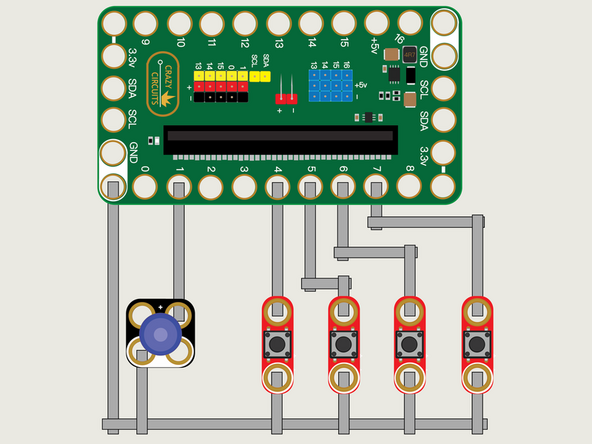
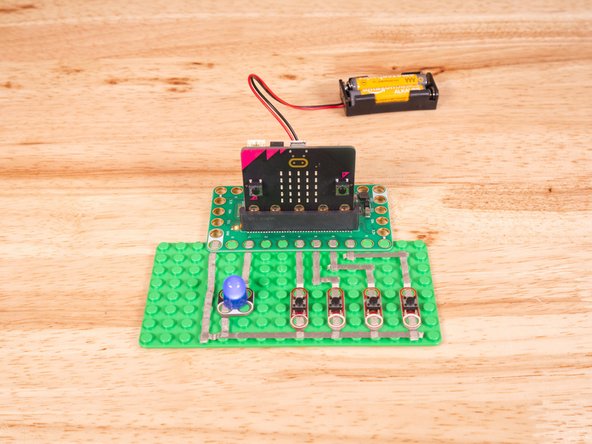
We'll use Maker Tape to connect the four Buttons and the LED to the Bit Board on a LEGO baseplate.
-
We'll connect our LED to Pin 1 and one of our Buttons to Pin 4 and the others to Pin 5, Pin 6, and Pin 7, respectively.
-
And of course we'll connect the Ground (GND) sides of each component to Ground on the Bit Board.
-
You'll notice the Ground on the Bit Board (as well as the LED and other Crazy Circuits components we'll use) is color coded White.
-
While the LED has Polarity our Button does not. If you connect it the other way around it will still work fine. Not all components have Polarity.
-
-
-
If you've never used a micro:bit before you'll want to check out this guide: Bit Board V2 Setup and Use
-
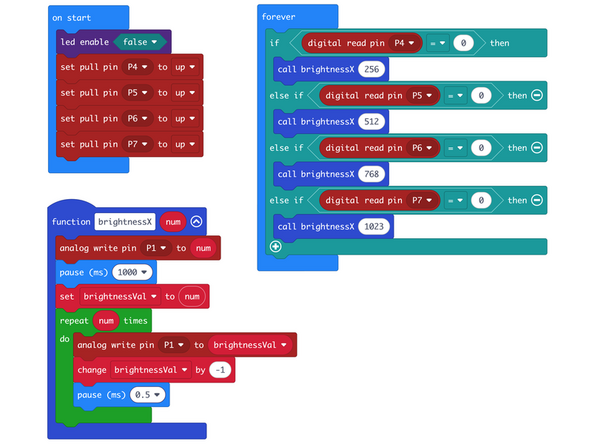
We're going to load the following code for our Four Buttons Fade program: https://makecode.microbit.org/_F0L0iCUrU...
-
This code uses a function which will run when a button is pressed. A different parameter will be sent depending on which button you press.
-
Our function brightnessX accepts one parameter, which tells the function the brightness level it should set the LED. (Remember, we can choose a value between 0 and 1023.)
-
The function will turn on the LED at the determined brightness, wait one second (1000 milliseconds) and then start a repeat loop to decrease the brightness, making the LED fade down.
-
-
-
Once the code is loaded it should start running immediately.
-
You can power the micro:bit via the USB cable you used to load the code or you can use a battery pack plugged into the Bit Board.
-
Press a button and you'll see the LED turn on for a second, and then start to dim. Try the different buttons for different initial brightness values.
-
-
-
Follow along with our recorded Live Stream!
-
You can watch the full video of us walking through this project, along with explaining and exploring the code: https://www.youtube.com/watch?v=Huqyi9A8...
-

Attached Documents
