
Introduction
Connect four pushbuttons to a Bit Board and control an LED with code.
We'll explore how we can use four pushbuttons as inputs for the micro:bit


Video Overview
Featured Document
-
-
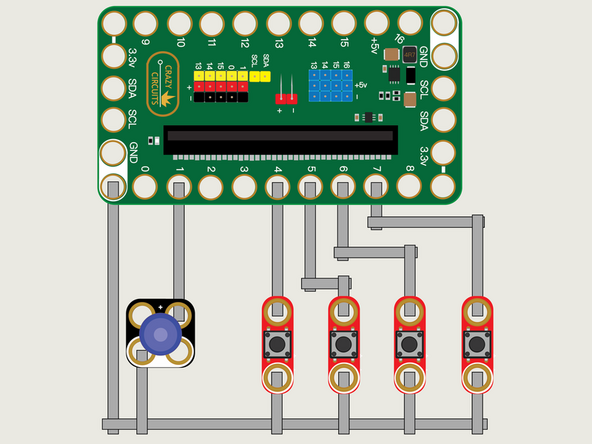
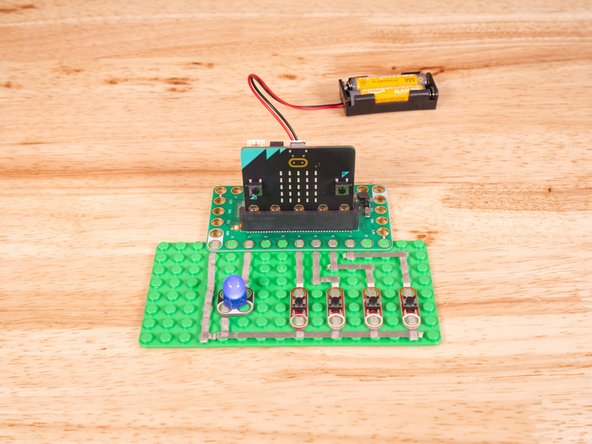
We'll use Maker Tape to connect the four Buttons and the LED to the Bit Board on a LEGO baseplate.
-
We'll connect our LED to Pin 1 and one of our Buttons to Pin 4 and the others to Pin 5, Pin 6, and Pin 7, respectively.
-
And of course we'll connect the Ground (GND) sides of each component to Ground on the Bit Board.
-
You'll notice the Ground on the Bit Board (as well as the LED and other Crazy Circuits components we'll use) is color coded White.
-
While the LED has Polarity our Button does not. If you connect it the other way around it will still work fine. Not all components have Polarity.
-
-
-
If you've never used a micro:bit before you'll want to check out this guide: Bit Board V2 Setup and Use
-
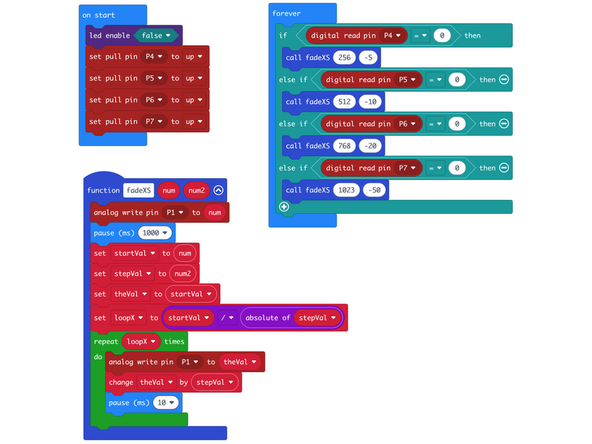
We're going to load the following code for our Four Buttons Fade Down program: https://makecode.microbit.org/_gUE20vVTs...
-
For this code we've added an additional parameter to our function call. The function fadeXS will take the initial brightness as well as the step (down) value when fading down the LED.
-
The function will turn on the LED at the determined brightness, wait one second (1000 milliseconds) and then start a repeat loop to decrease the brightness, making the LED fade down.
-
We're setting a few variables and even calculating the absolute value of a negative value this time.
-
We're still "hardcoding" how many milliseconds we'll pause during the repeat loop but it would be trivial to add a third parameter to set a variable for that.
-
-
-
Once the code is loaded it should start running immediately.
-
You can power the micro:bit via the USB cable you used to load the code or you can use a battery pack plugged into the Bit Board.
-
Press a button and you'll see the LED turn on for a second, and then start to dim. Try the different buttons for different initial brightness values.
-
-
-
Follow along with our recorded Live Stream!
-
You can watch the full video of us walking through this project, along with explaining and exploring the code: https://www.youtube.com/watch?v=Huqyi9A8...
-

Attached Documents
