
Introduction
Connect a Distance Sensor to a Bit Board and view the output using the built-in LED Matrix on the micro:bit


Video Overview
Featured Document
-
-
We'll connect the Distance Sensor with a Crazy Circuits Ribbon Cable using all four wires.
-
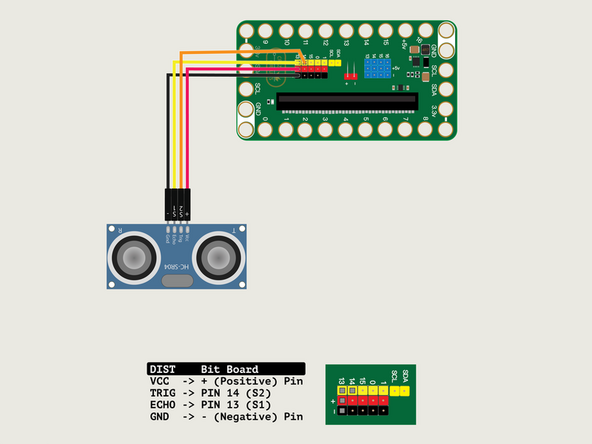
Plug the three-wire connector of the Crazy Circuits Ribbon Cable into the row with Pin 13 on the Bit Board. The wire colors should match the pin header colors, with S1 (yellow) going to the yellow pin.
-
Next, plug S2 (orange) into Pin 14. (S2 is separated from the three-wire connector to allow you to plug it into another row.)
-
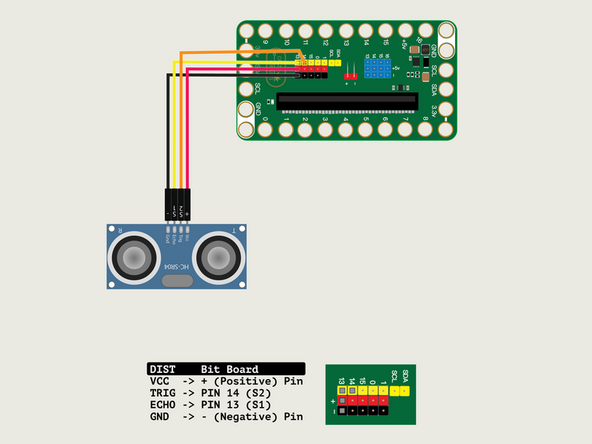
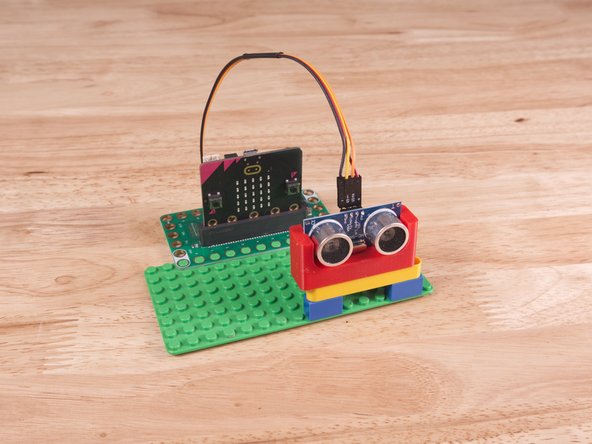
Plug + (red) into VCC; S2 (orange) into TRIG; S1 (yellow) into ECHO; and - (black) into GND.
-
-
-
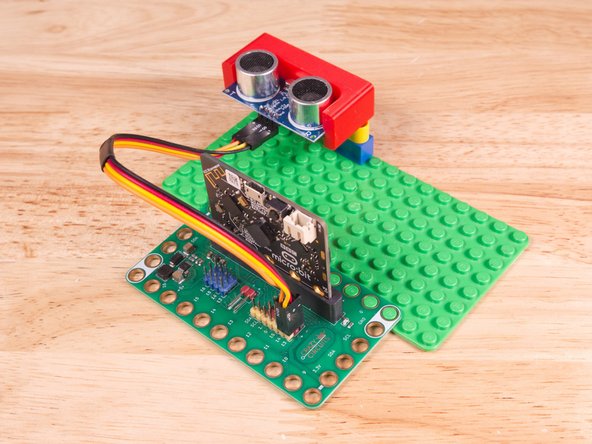
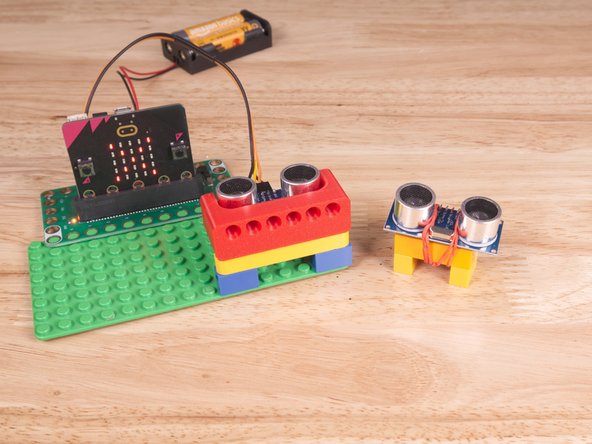
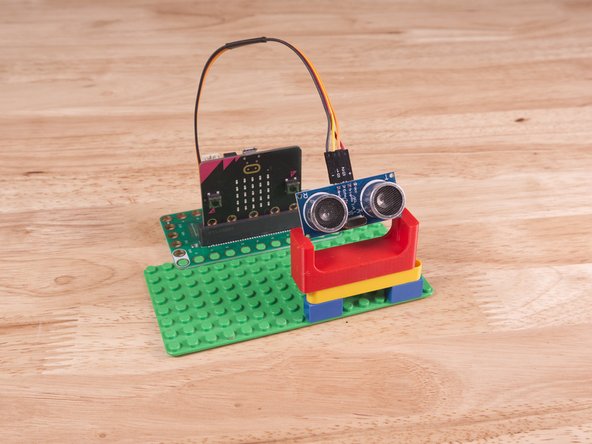
We used a 3D printed part we designed to hold the Distance Sensor in place on the LEGO baseplate.
-
A few Technic pins, a Technic beam, and some LEGO bricks are all that is needed.
-
Alternately you can use some LEGO bricks and a rubber band or tape to hold the sensor in place. (But don't use anything conductive!)
-
3D print your own Distance Sensor Holder with Holes. (It's the same one we use in our Bit Board Rover Kit).
-
-
-
If you've never used a micro:bit before you'll want to check out this guide: Bit Board V2 Setup and Use
-
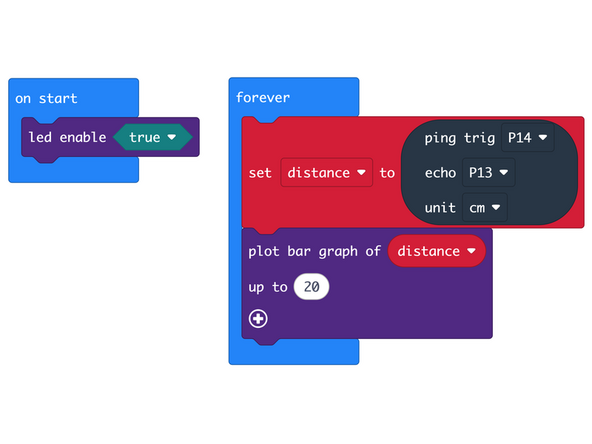
We're going to load the following code for our Distance Sensor Bar Graph program: https://makecode.microbit.org/_MsTC2xVyg...
-
In the forever block we'll set Pin 14 and Pin 13 to TRIG and ECHO (respectively) so we can read the Distance Sensor. This allows us to continually read the sensor and assign the value to distance.
-
We'll then plot a bar graph using the distance and set it to go up to 20. (This means we'll see output when an object is within 20cm of the Distance Sensor.)
-
-
-
Once the code is loaded it should start running immediately.
-
You can power the micro:bit via the USB cable you used to load the code or you can use a battery pack plugged into the Bit Board.
-
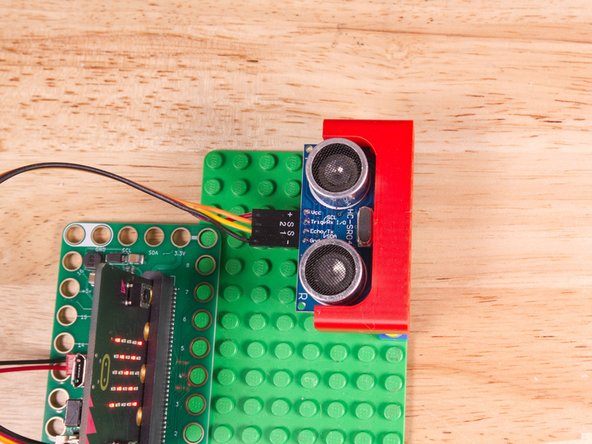
Move your hand (or a flat object) in front of the sensor. As you get closer you'll see the LED matrix react with a bar graph proportional to the distance.
-
-
-
Follow along with our recorded Live Stream!
-
You can watch the full video of us walking through this project, along with explaining and exploring the code: https://youtube.com/live/BTIGtgqRKUM
-
Attached Documents
