
Introduction
Connect a Thumbstick to a Bit Board and control a NeoPixel Strip.

Video Overview
Featured Document
-
-
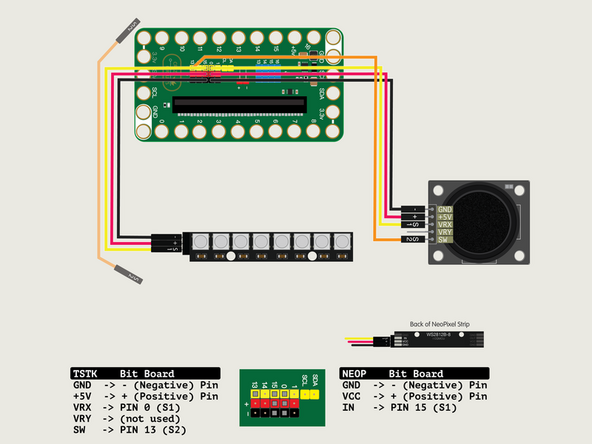
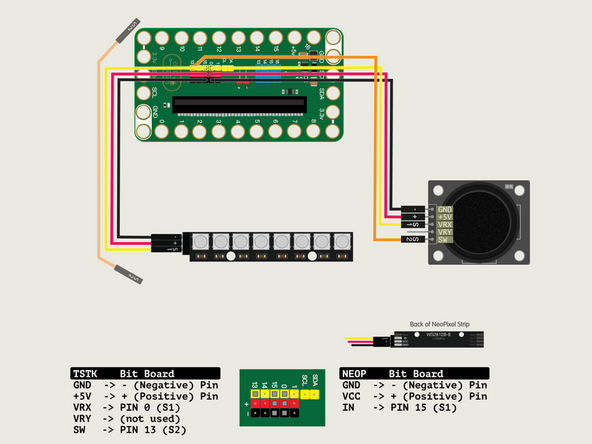
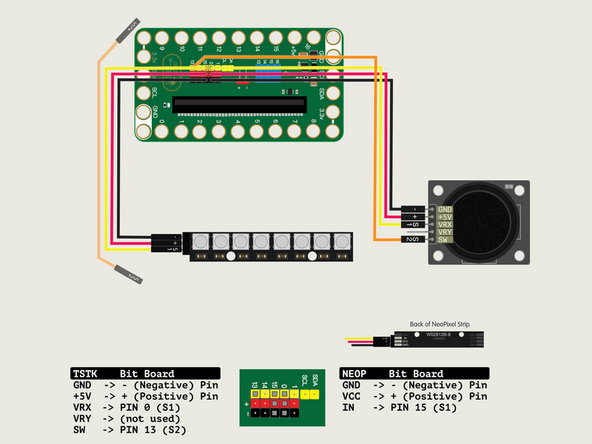
We'll connect the Thumbstick with a Crazy Circuits Ribbon Cable using all four wires.
-
Plug the three-wire connector of the Crazy Circuits Ribbon Cable into the row with Pin 0 on the Bit Board. The wire colors should match the pin header colors, with S1 (yellow) going to the yellow pin.
-
Next, plug S2 (orange) into Pin 13. (S2 is separated from the three-wire connector to allow you to plug it into another row.)
-
To the Thumbstick plug - (black) into GND, + (red) into +5V; S1 (yellow) into VRx; S2 (orange) into SW.
-
We won't plug anything into VRy pin for this example.
-
-
-
The magical thing about these “Individually Addressable” LEDs is that you don’t have to connect each LED to an individual pin on your micro:bit, you just need one signal wire along with power (Positive and Negative) to light things up.
-
So let's get connected! If you turn the NeoPixel Strip over you'll see labels for the three pins. You should see IN, VCC, and GND.
-
Use the Crazy Circuits Ribbon Cable to connect the NeoPixel Strip to the Bit Board.
-
The end with S1, +, and - can plug directly into the Pin 15 row (make sure S1 goes into 15) and the other end should plug into the NeoPixel Strip as shown.
-
We only need three wires for the NeoPixel Strip so you can leave S2 (the Orange wire) unconnected.
-
-
-
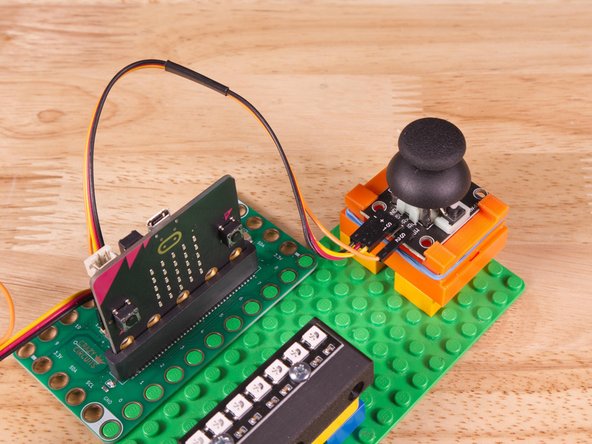
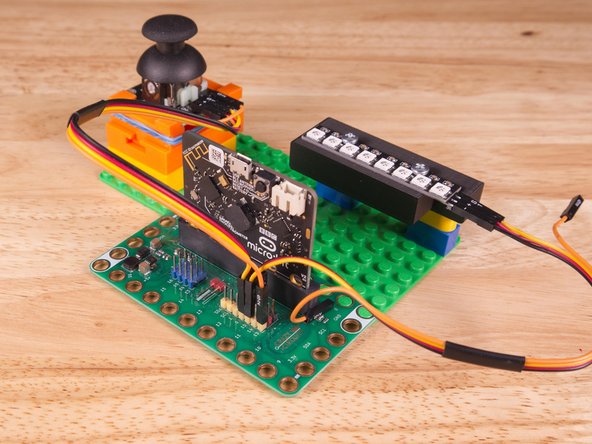
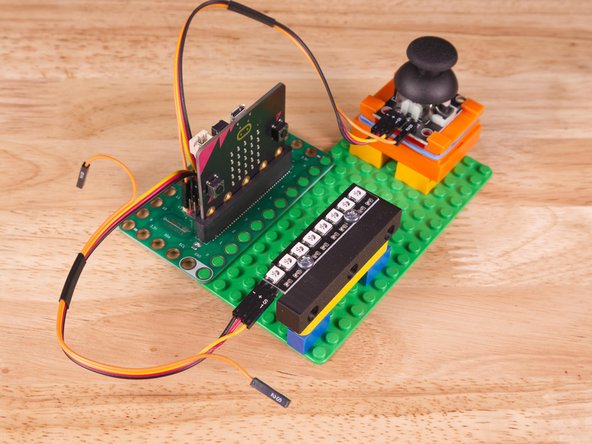
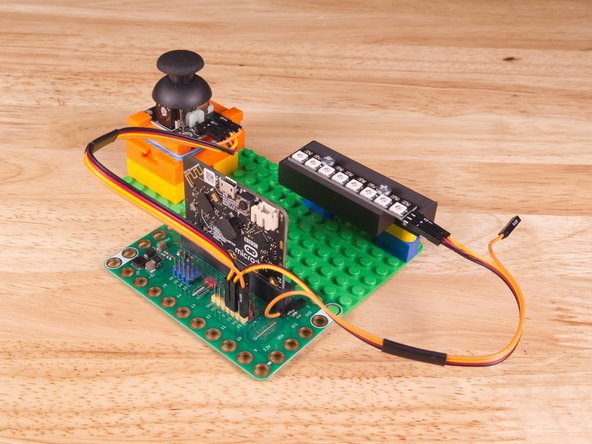
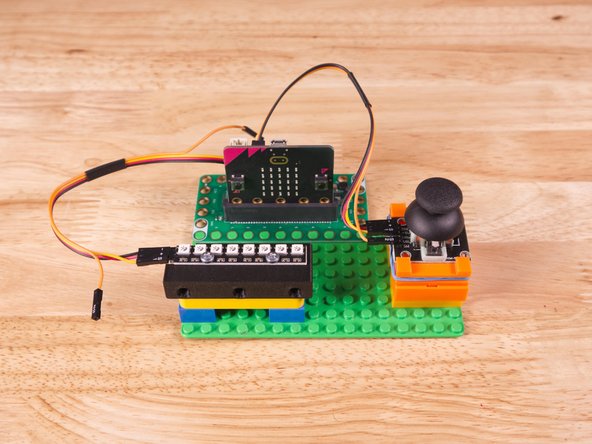
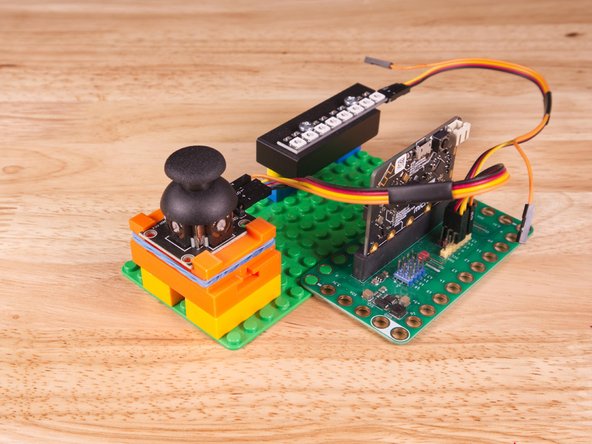
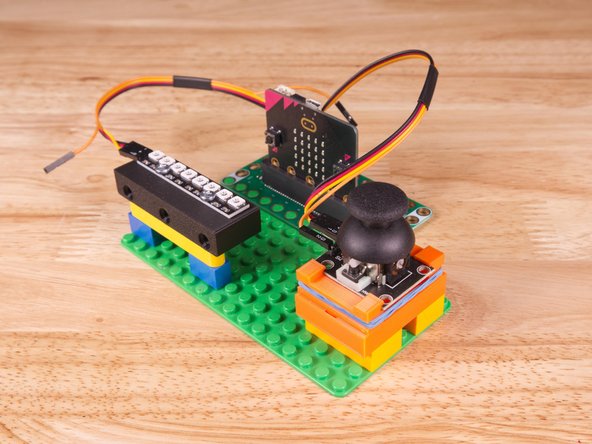
We used a 3D printed part we designed to hold the Thumbstick in place on a LEGO baseplate.
-
We attached two 2x4 LEGO Bricks to the bottom of the 3D printed holder to allow it to snap onto the LEGO Baseplate a bit easier.
-
Alternately you can try to use some LEGO bricks and some rubber bands to hold the sensor in place, or just hold it in your hand.
-
You can always 3D print your own Thumbstick Sensor Holder if you need one.
-
Our NeoPixel Strips come pre-attached to our Rover NeoPixel Beam Holder, so a few Technic pins, a Technic beam, and some LEGO bricks are all that is needed.
-
-
-
If you've never used a micro:bit before you'll want to check out this guide: Bit Board V2 Setup and Use
-
We're going to load the following code for our Thumbstick NeoPixel Random program: https://makecode.microbit.org/_UDL2PhK72...
-
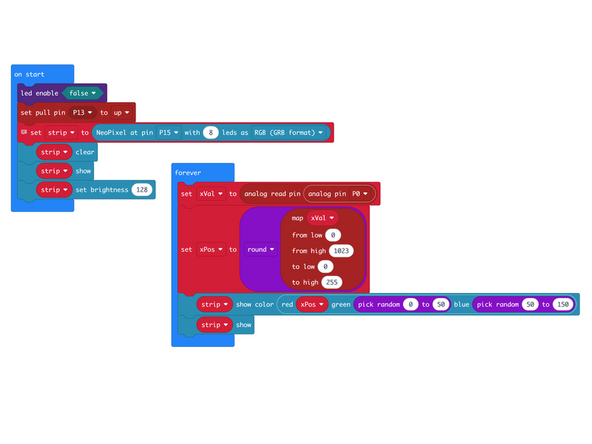
In the on start block we'll disable the LED matrix and set Pin 13 to pull up. (In previous chapters we've used Pin 13 to read the button on the Thumbstick but for this example we're going to ignore it.)
-
We'll also set up our NeoPixel Strip connected to Pin 15 with 8 LEDs. (Remember that even though we have 8 LEDs they are addressed as 0 through 7.) We also call strip clear, strip show, and then set brightness when we get started.
-
In the forever loop we'll read the thumbstick and store the value in xVal, then map that value on a scale from 0 to 255 and assign it to xPos.
-
We then use show color and assign xPos to red, while we use pick random to continually change the values for green and blue.
-
-
-
Once the code is loaded it should start running immediately.
-
You can power the micro:bit via the USB cable you used to load the code or you can use a battery pack plugged into the Bit Board.
-
The NeoPixels will be flickering right away. Move the Thumbstick left and right you'll see the color change as the amount of red (compared to green and blue) varies.
-
-
-
Follow along with our recorded Live Stream!
-
You can watch the full video of us walking through this project, along with explaining and exploring the code: https://www.youtube.com/live/-m3Rf60AolA
-
Attached Documents
