

Introduction
Connect a NeoPixel Stick and a Pushbutton to a Bit Board and control them with code.
We'll explore how to control an Addressable RGB LED Strip (also called "NeoPixels").


Video Overview
Featured Document
-
-
The magical thing about these “Individually Addressable” LEDs is that you don’t have to connect each LED to an individual pin on your micro:bit, you just need one signal wire along with power (Positive and Negative) to light things up.
-
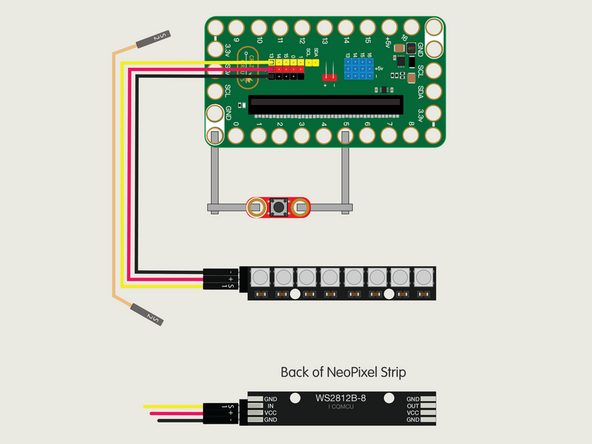
So let's get connected! If you turn the NeoPixel Strip over you'll see labels for the three pins. You should see IN, VCC, and GND.
-
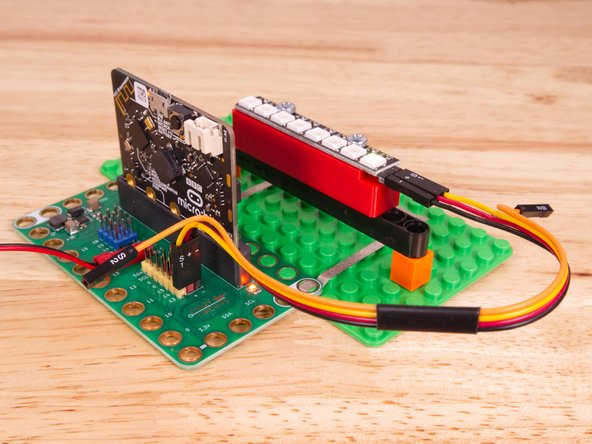
Use the Crazy Circuits Ribbon Cable to connect the NeoPixel Strip to the Bit Board.
-
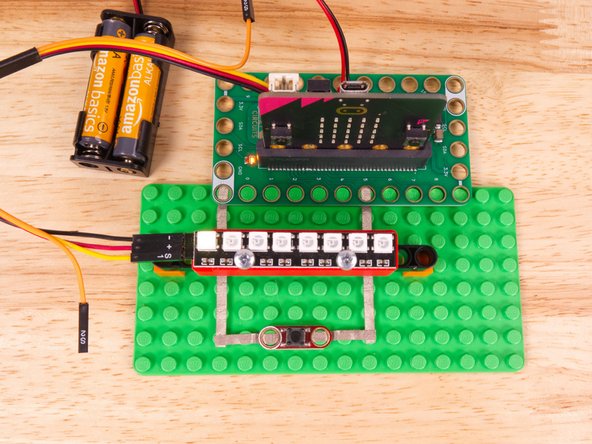
The end with S1, +, and - can plug directly into the Pin 13 row (make sure S1 goes into 13) and the other end should plug into the NeoPixel Strip as shown.
-
We only need three wires for the NeoPixel Strip so you can leave S2 (the Orange wire) unconnected.
-
We'll also connect a button using Maker Tape. Connect it to Pin 5 and GND. (Polarity does not matter with these buttons.)
-
-
-
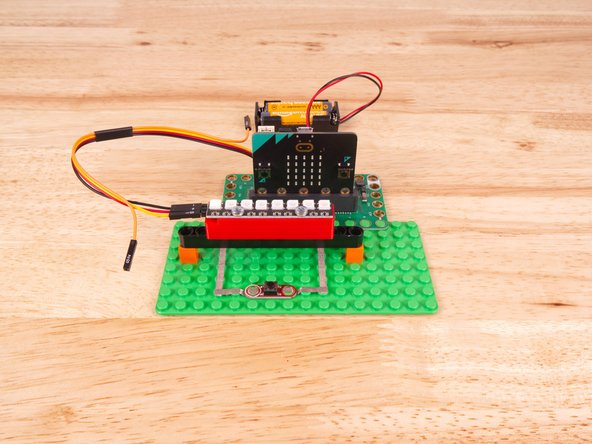
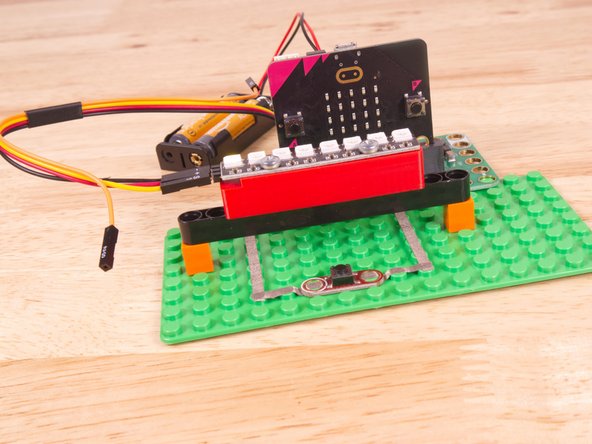
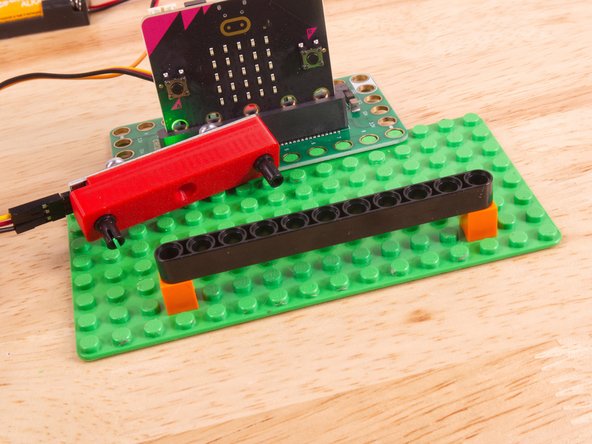
To mount the NeoPixel Stick in place we used our NeoPixel Beam Holder with a long Technic Beam and two 1x1 LEGO bricks.
-
You can always use rubber bands, tape, or some other method.
-
The important thing is to make sure the connector is on the left hand side so the number index for the NeoPixel strip makes sense.
-
-
-
If you've never used a micro:bit before you'll want to check out this guide: Bit Board V2 Setup and Use
-
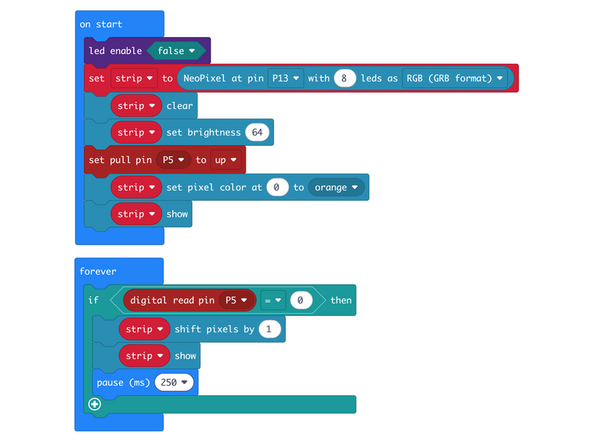
We're going to load the following code for our NeoPixel Shift program: https://makecode.microbit.org/_LuLdqdMVE...
-
The shift function provides an easy way to "move" one (or more) "pixels" in one direction.
-
We covered the shift function in a previous guide, but this time we're controlling it with a button. Each time the button is pressed the pixel will shift one position.
-
-
-
Once the code is loaded it should start running immediately.
-
You can power the micro:bit via the USB cable you used to load the code or you can use a battery pack plugged into the Bit Board.
-
The pixel on the very left should light up. If you press the button the lit-up pixel should move to the right.
-
Press and hold the button down and the pixel should keep moving until you release it.
-
If you keep pressing (or hold down) the button the pixel will eventually go off the right side and disappear!
-
Unlike the rotate function, the shift function just keeps pushing the pixel to the right, and it never comes back around. You won't see it again unless you restart the micro:bit
-
-
-
Follow along with our recorded Live Stream!
-
You can watch the full video of us walking through this project, along with explaining and exploring the code: https://youtube.com/live/8EJiYAkb8qk
-
Attached Documents
