

Introduction
Connect a NeoPixel Stick and a Pushbutton to a Bit Board and control them with code.
We'll explore how to control an Addressable RGB LED Strip (also called "NeoPixels").


Video Overview
Featured Document
-
-
The magical thing about these “Individually Addressable” LEDs is that you don’t have to connect each LED to an individual pin on your micro:bit, you just need one signal wire along with power (Positive and Negative) to light things up.
-
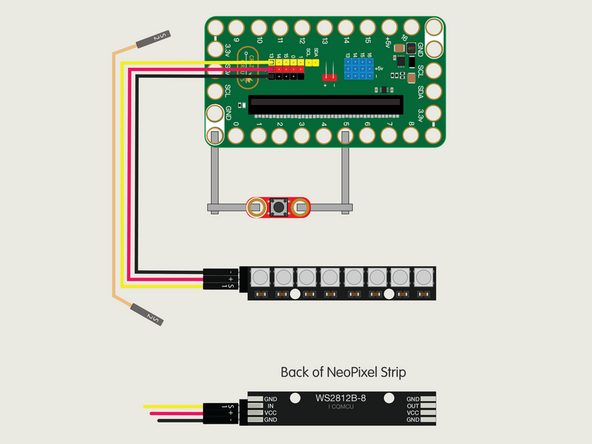
So let's get connected! If you turn the NeoPixel Strip over you'll see labels for the three pins. You should see IN, VCC, and GND.
-
Use the Crazy Circuits Ribbon Cable to connect the NeoPixel Strip to the Bit Board.
-
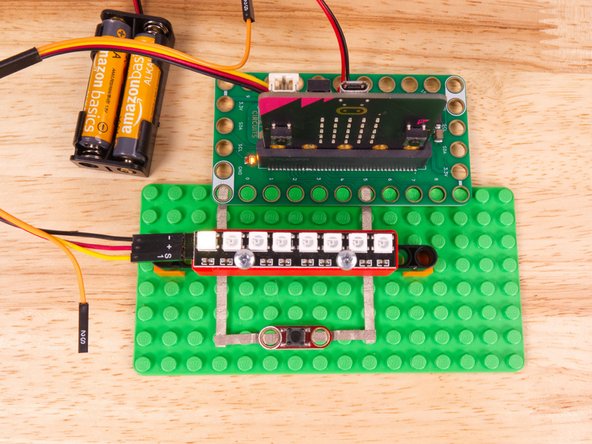
The end with S1, +, and - can plug directly into the Pin 13 row (make sure S1 goes into 13) and the other end should plug into the NeoPixel Strip as shown.
-
We only need three wires for the NeoPixel Strip so you can leave S2 (the Orange wire) unconnected.
-
We'll also connect a button using Maker Tape. Connect it to Pin 5 and GND. (Polarity does not matter with these buttons.)
-
-
-
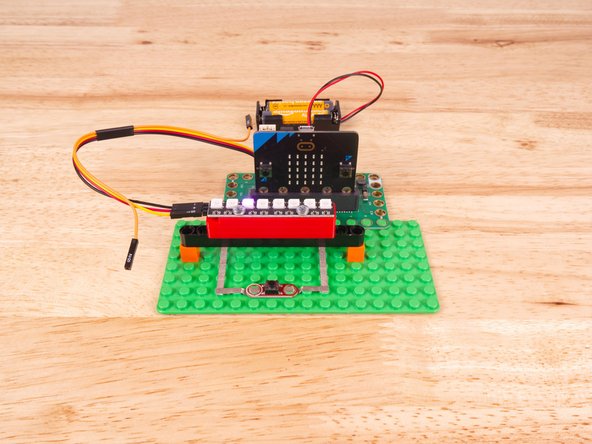
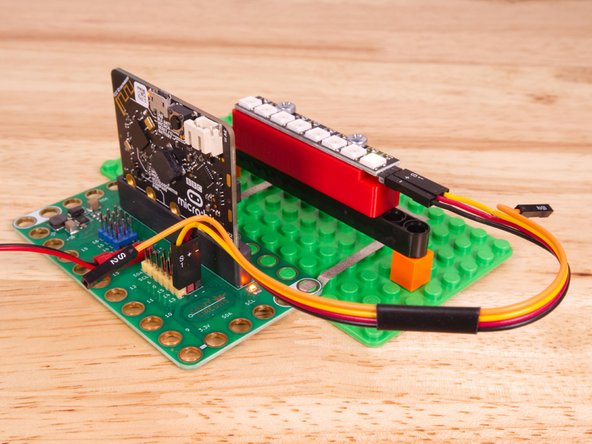
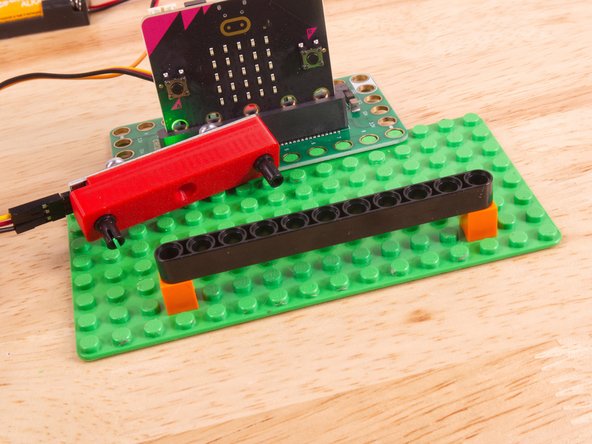
To mount the NeoPixel Stick in place we used our NeoPixel Beam Holder with a long Technic Beam and two 1x1 LEGO bricks.
-
You can always use rubber bands, tape, or some other method.
-
The important thing is to make sure the connector is on the left hand side so the number index for the NeoPixel strip makes sense.
-
-
-
If you've never used a micro:bit before you'll want to check out this guide: Bit Board V2 Setup and Use
-
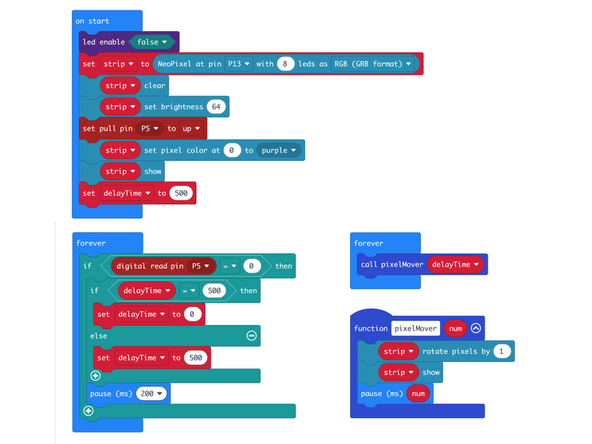
We're going to load the following code for our NeoPixel Rotate Speed program: https://makecode.microbit.org/_ebzKmh61i...
-
We will once again check for a button press and if we see one we will toggle between two different delayTime values. (We'll also pause after as a primitive debounce mechanism.)
-
A second forever loop call our pixelMover function, passing in the delayTime.
-
Finally, our pixelMover function runs and a pixel is rotated with the delay we've set between each move/rotation.
-
-
-
Once the code is loaded it should start running immediately.
-
You can power the micro:bit via the USB cable you used to load the code or you can use a battery pack plugged into the Bit Board.
-
You'll see the pixel move from left to right at a slow speed.
-
Press the button down and the pixel should speed up! Press it again to slow it down.
-
Things may or may not work as expected depending on how long the button is held down. We covered some more advanced button behavior in Chapter 4 - Single Button.
-
See CH4-D - Button Toggle Better for a good "toggle" example.
-
-
-
Follow along with our recorded Live Stream!
-
You can watch the full video of us walking through this project, along with explaining and exploring the code: https://youtube.com/live/8EJiYAkb8qk
-

Attached Documents
